

1 Product Introduction
1.1 Overview
The thermal monocular camera captures sharp thermal imaging at a fast frame rate for smooth, impeccable vision on running targets and from moving vehicles. Designed to increase situational awareness at any time of day, the camera can detect humans, animals, and objects in complete darkness, haze, or through glaring light, equipping law enforcement professionals, hunters, and outdoor enthusiasts with reliable thermal imaging in tough conditions. It is widely used in outdoor scenarios for hunting, rescue, animal observation, and more.
1.2 Functions
- Color palettes Different color palettes display different effects.
- Digital zoom Supports 1×, 2×, 4× and 8× digital zoom. The number might different depending on devices.
- Range measurement Marks the top and bottom of the target, and the screen automatically displays the distance of the target from the camera.
- Hot point tracking Detects and marks the highest and lowest temperature point.
- Network Supports network connection through the Wi-Fi. You can add the Camera through mobile app to realize functions, such as capturing, recording and parameter configuration.
- Storage Built-in storage (32 GB EMMC), supports recording and capturing.
- Automatic suspend and shutdown Supports setting time of automatic suspend and shutdown.
2 Structure
2.1 Packing List

2.2 Device Description

| No. | Name | Description |
| 1 | Power button | ● Press and hold to start or shut down the Camera. ● Press to enable or disable the suspend mode. |
| 2 | Capture button | ● Press and hold to record videos. ● Press to capture images. |
| 3 | Mode button | ● Press and hold to go to the main menu. ● Press to select the pseudo color. |
| 4 | Zoom button | ● Press and hold to manually adjust the shutter. ● Press for digital zoom |

| No. | Name | Description |
| 1 | Diopter adjustment knob | Adjust the diopter according to your yesight |
| 2 | Adjustable lens | Manually rotate the lens to adjust the focus for a clear image |
| 3 | Protective cover | Dust prevention. Close the cover when not using the Camera. |
| 4 | MIC | Collects sound. |
| 5 | Tripod nut | For tripod installation. |
| 6 | Charging indicator | ● Red and green lights flashing alternately: charging error. ● Red light on: charging. ● Green light on: fully charged. ● Off: not connected to data cable to charge. |
| 7 | Type-C port | Connects to a data cable for charging. |
| 8 | Battery compartment | The place for holding the battery. |
3 Basic Operation
3.1 Starting and Shutdown
3.1.1 Manual Starting and Shutdown
Press and hold to start or shut down the Camera; press to suspend or weak up the Camera.
 After starting the Camera, remove the protective cover of the lens.
- When the Camera is shut down, press and hold
 to start it.
 - When the Camera is on, press and hold to shut down it.
- When the Camera is on, press to suspend the Camera.
- When the Camera is in suspend mode, press to weak up it.
3.1.2 Auto Shutdown
Step 1 Press and hold to go to the main menu.
Step 2 Press or to select
  .
.
Step 3 Press to go to the System Settings configuration screen.
Step 4 Press or to select Auto Shutdown.
Step 5 Press , and then press or to set the auto shutdown time.
- Off: Disable the auto shutdown.
- 5 Mins,10 Mins, 30 Mins, 60 Mins: If there is no operation in the configured time, the Camera will automatically shut down.
Step 6 Press to save the configuration. After finishing the auto shutdown settings, the Camera will suspend first, and then shut down.
3.2 Configuring the Camera
3.2.1 Menu Description
When the Camera is on, press and hold to enter the main menu. Function of all buttons are as follows.
- Press to move upward the cursor.
- Press to move downward the cursor.
- Press to confirm.
- Press to exit.

3.2.2 Image Adjustment
3.2.2.1 Adjusting Diopter
To get clear images, rotating the diopter adjustment knob to fit your eyesight.
For the first-time use, adjust the diopter before configuring the unctions.
Step 1 Aim the lens at the target, and then make your eyes close to the eyeshade.
Step 2 Adjust clockwise or counterclockwise the knob according to your eyesight.

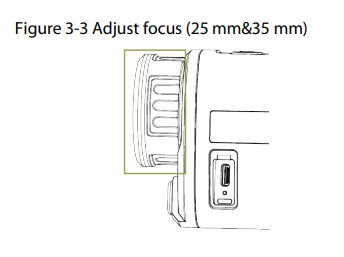
3.2.2.2 Adjusting Focus
Rotate the lens to get a clear view.
Step 1 Aim the thermal lens to the target.
Step 2 Adjust clockwise or counterclockwise the lens until the view is clear.
During the adjustment, do not touch the lens to avoid smudging it; otherwise it may affect the image quality
3.2.2.3 Setting Color Palettes
Select the color palettes, which adds color to the thermal image and uses color to indicate the temperature. On the viewing screen, press to select the color palettes.
You can also select the on the main menu to select the color alettes.
- White Hot: The objects with high temperature are white. The higher the temperature, the brighter the color.
- Alarm: The objects with high temperature are red. The objects can stand out.
- Iron Red: The objects with high temperature are red. The higher the temperature, the brighter the color.
- Black Hot: The objects with high temperature are black. The higher the temperature, the darker the color.
- Sepia: The objects with high temperature are brown. The higher the temperature, the darker the color.
- Green Hot: The objects with high temperature are green. The higher the temperature, the darker the color.


3.2.2.4 Setting Digital Zoom
Digital zoom helps to zoom in the image. On the viewing screen, press to do digital zoom, and the image changes.
3.2.2.5 Setting Status Bar Display
Step 1 On the main menu, press or to select  .
.
Step 2 Press to go to the Status Bar configuration screen.
Step 3 Press to select On to display the status bar; select Off to hide the status bar.
| Icon | Name | Description |
 | Wi-Fi | ●  Wi-Fi is disabled. Wi-Fi is disabled.● Wi-Fi is enabled. |
 | SD card status | ● White icon: SD card is correctly installed. ● Red icon: The memory of the SD card is full. ● Red icon with “X” mark: The SD card is not installed. ● Red icon with “!” mark: The SD card runs into fault. The screen displays formatting prompt. |
 | Digital zoom | Supports 1×, 2×, 3× and 4× digital zoom. The number might different depending on models. |
 | Battery level: | Displays the battery level in real time. |
Step 4 Press to save the configuration.
3.2.2.6 Adjusting Brightness
You can adjust the screen brightness, including 5 levels: level 1, level 2, level 3, level 4 and level 5
Step 1 On the main menu, press or to select  .
.
Step 2 Press to go to the Brightness configuration screen.
Step 3 Press to select the brightness level.
Step 4 Press to save the configuration.
3.2.2.7 Setting Contrast
You can set the contrast, including 5 levels: level 1, level 2, level 3, level 4 and level 5.
Step 1 On the main menu, press or to select .
.
Step 2 Press to go to the Contrast configuration screen.
Step 3 Press to select the contrast level.
Step 4 Press to save the configuration.
3.2.3 Setting Scene Mode
Step 1 On the main menu, press or to select  .
.
Step 2 Press to go to the Scene Mode configuration screen.
Step 3 Press to select the scene mode from Standard and Forest.
- Standard: Used for daily observation.
- Forest: Stands out the targets with high temperature, which makes it easier to find out the targets
Step 4 Press to save the configuration.
3.2.4 Setting Burning Warning
Step 1 On the main menu, pressor to select .
.
Step 2 Press to go to the Burning Warning configuration screen.
Step 3 Press to enable or disable the burn warning function.
Step 4 Press to save the configuration.
3.2.5 Setting Logo Display
Step 1 On the main menu, press or to select  .
.
Step 2 Press to go to the Logo configuration screen.
Step 3 Press to enable or disable logo display.
Step 4 Press to save the configuration. After enabling logo display, the logo will be display when the camera is starting.
3.2.6 Setting Language
You can select the language as needed
Step 1 On the main menu, press or to select .
.
Step 2 Press to go to the Language configuration screen.
Step 3 Press to select the language as needed.
Step 4 Press to save the configuration.
3.2.7 Setting Ranging Mode
After setting the ranging mode, the Camera can measure the range towards targets.
To guarantee the measurement accuracy, keep your hand steady when measuring the range.
Step 1 On the main menu, press or to select .
.
Step 2 Press to go to the Ranging Mode configuration screen.
Step 3 Press or to move the green lines to the top and bottom of the target to get the distance between the target and the Camera.
Use the following fig as an example:
- If the target is a wolf, it is 30 m away from Camera.
- If the target is a rabbit, it is 11 m away from Camera.
- If the target is a wild boar, it is 33 m away from Camera.
- If the target is a deer, it is 48 m away from Camera.

3.2.8 Setting FFC Mode
With FFC (Flat-Field Calibration), the thermal image can be optimized, and you can easily find out temperature changes.
Step 1 On the main menu, press or to select .
.
Step 2 Press to go to the Calibration configuration screen.
Step 3 Select the FFC mode.
- Auto: The camera calibrates image automatically every certain period.
- Press to select Auto.
- Press to confirm.
The camera calibrates image automatically
- Manual: On the viewing screen, press to manually calibrate the image as needed
- Immediately: Calibrate the image once.
- Press to select Immediately.
- Press to confirm.
The camera calibrates image once immediately.
3.2.9 Setting DPC
After enabling DPC (Defective Pixels Correction), you can correct the defective pixels in the image.
Step 1 On the main menu, press or to select  .
.
Step 2 Press to go to the DPC configuration screen.
Step 3 Press to set DPC.
- Auto: The Camera automatically corrects the defective pixels in the image.
- Select Auto.
- Press to start the auto correction.
- Follow the screen instructions to close the lens cover.
- Press to save the configurations
- Manual: You need to correct the defective pixels manually.
- Press to select X-axis and Y-axis.
- Press and hold or to calibrate the defective pixels.
- Press and hold to save the configuration.
The center of the cursor is the position of the defective pixel.
- Restore: The DPC configuration is restored to the primary state.
3.2.10 Setting Hot Point
Tracks the points with the highest and lowest temperature in real time.
Step 1 On the main menu, press or to select .
.
Step 2 Press to go to the Hot Point configuration screen.
Step 3 Press to enable or disable Hot Point.
Step 4 Press to save the configuration.
After enabling Hot Point, the hot and cold point icons will automatically locate at the points with the highest temperature in the image.
3.2.11 Setting Wi-Fi Connection
After enabling Wi-Fi connection, you can connect your phone to the hotspot of the Camera, and then access the Camera with the app. The frequency bands and modes and the nominal limits of transmitted power (radiated and/or conducted) applicable to this radio device are the following:
Figure 3-11 QR code


Step 2 On the main menu, press or to select .
Step 3 Press to go to the WiFi configuration screen.
Step 4 Enable the Wi-Fi function.
Hotspot: Use the Camera as the hotspot, and connect your phone to the hotspot of the Camera
- Press to select Hotspot, and then press .
- Enable the Wi-Fi of your smart phone, and then connect to the hotspot of the Camera
◇ Wi-Fi name: Model number + serial number.
◇ Wi-Fi password: The last 8 digits of the serial number.
You can find the serial number on the Camera and the label of the packing box.
- Log in to the app. The password is the last 8 digits of the serial number. Add devices according to the prompt.
- Off: Disable the Wi-Fi function.
3.2.12 System Settings
Step 1 On the main menu, press or to select .
Step 2 Press to go to the System Settings configuration screen.
Step 3 Press or to select the parameter to be configured.
Step 4 Press to go to the configuration screen.
| Parameter | Description |
| MIC | Press or to enable or disable MIC. |
| Auto Standby | Press or to select the auto standby time. ● Off: Disable auto standby. ● 1 Min, 3 Min, 5 Min, 10 Min: If there is no operation in the configured time, the Camera will automatically suspend. |
| USB Mode | Press or to select the USB mode. ● On: The Camera can be used as a storage device. ● Off: Charge the Camera |
| Unit Set | Press or to select the unit from meter and feet. |
| Always On Display | Press or to select On. If there is no operation within a certain period, the screen will be off automatically. |
| Time Display | Press or to select the display format of the time. |
| Time Set | Press to select the date or time to be configured; and then press or to set the value. |
| Version | View the device information such as serial number and version number. |
| Restore Default | Restore the device to default configuration. This operation will restore the camera to default configuration. Please be careful. This operation will restore the camera to default configuration. Please be careful. |
3.3 Video and Snapshot
3.3.1 Recording Videos
On the viewing screen, press and hold for 3 seconds to start recording a video. The recording icon lashes on the screen and the recording time is display. Press and hold again for 3 seconds to stop the ecording. When the recording stops, the recording time will display normally.
3.3.2 Capturing Images
On the viewing screen, press to capture images. The screen will display an icon when the capturing succeeds.
3.3.3 Exporting File
Exports the recorded and captured files.
Step 1 Connect the Camera to the computer through USB data cable. The driver will automatically be installed for first-time connection.
- Connect the cables before starting the Camera. Do not hot swap the USB port of the Camera.
- Select On on the USB Mode configuration screen after connecting the Camera to the computer.
Step 2 On the computer desktop, double-click My Computer, and then open the Camera disk at a mobile storage device.
Step 3 Select the files to export and copy them to the computer. The specific computer client is required for playing the exported files. Step 4 Disconnect the USB data cable with the computer. After connecting the Camera to the computer, images can be displayed on the Camera, but the functions of recording and capturing will not be available.
3.4 Charging
The start bar will display battery information after the Camera starts. When the battery is low, charge the Camera timely to make sure the normal function.
- When charging the Camera, the temperature is required at 0 °C to 45 °C (32 °F to 113 °F). Otherwise the charging function will be automatically disabled.
- Charge the Camera with the Type-C data cable that comes with the delivery
Step 1 Open the sealing cover of the Type-C port when charging.
Step 2 Connect the Type-C cable to the Type-C port to charge the Camera. The charging indicator states:
- Red and green lights flashing alternately: charging error.
- Red light on: charging.
- Green light on: fully charged.
- Off: not connected to data cable to charge.
4 System Update
4.1 Upgrading Manually
Step 1 On the main menu, press or to select .
Step 2 Press to go to the System Settings configuration screen.
Step 3 Press or to select USB Mode, and then press .
Step 4 Select On.
Step 5 Connect the Camera and your computer, and then copy the upgrading file to the Camera.
Step 6 Disconnect the Camera and your computer, and then restart the camera.
4.2 Upgrading through App
When the app detects new program for upgrading, it will prompt a notification. Tap Upgrade to upgrade the system.
Appendix 1 Compliance Notice
The thermal series products might be subject to export controls in various countries or regions, including without limitation, the United States, European Union, United Kingdom and/or other member countries of the Wassenaar Arrangement. Please consult your professional legal or compliance expert or local overnment authorities for any necessary export license requirements if you intend to transfer, export, re-export the thermal series products between different countries.