

1 Overview
HIKMICRO HABROK Pro series is a powerful and innovative ultispectrum binocular. This all-in-one binocular can be mainly applied in forest & field hunting, birding, animal searching, adventuring, and rescuing in various weather conditions.
- High thermal sensitivity ensures detail recognition even when there is minimal temperature difference between the object and background.
- Advanced 4K digital detector with 60 mm lens for excellent detail recognition capability in true living color.
- Replaceable IR illuminator brings superior clarity in classic black/white images in darkness.
- Precise built-in laser rangefinder capable of measuring distance up to 1,000 m.
1.1 Main Function
- Smart IR: The smart IR function helps to view targets clearly in dark environment.
- WDR: WDR (Wide Dynamic Range) enhances the viewing experience by providing better image quality in diverse lighting conditions.
- Large Digital Zoom: Digital zoom offers better focus on small target from a far distance.
- Video and Audio Recording: The built-in memory module supports video recording. Audio function allows you to record the sound during video recording.
- Local Album: Captured images and recorded videos are stored in the device, and you can view the files in the local albums.
- Compass: The device can detect the azimuth angle and elevation angle and show the direction information on the screen.
- Distance Measurement: Built-in laser range finder provides an accurate distance between the target and the observation position.
- App Connection: The device can capture snapshots, record videos, and set parameters by HIKMICRO Sight app after being connected to your phone via hotspot.
1.2 Appearance
 Note
Note
- The appearance may vary according to different models. Please take the actual product for reference.
- Pictures in this manual are for illustration purpose only. Please take the actual product for reference.


e
| No. | Component | Description |
| 1 & 3 | Eyepiece | The piece placed closest to the eye to view the target. Adjust the interpupillary distance by moving the eyepieces farther or closer to each other. |
| 2 | Buttons | To set functions and parameters |
| 4 & 6 | Neck Strap Attachment Point | Attaches the neck strap |
| 5 | Power Indicator | Indicates the device status. It stays solid red when the device is on. |
| 7 | Beam Angle Adjustment Knob | Adjusts the beam angle of IR illuminator |
| 8 | Removable IR Illuminator | Helps to view target clearly in the dark environment. |
| 9 | Battery Compartment | For holding the battery. |
| 10 | Laser Rangefinder | Measures the distance to the target with laser |
| 11 | Thermal Lens | For thermal imaging. |
| 12 | Digital Lens | For digital imaging. |
| 13 & 19 | Focus Ring | Adjusts focus to obtain clear targets. |
| 14 | Charging Status Indicator | Indicates the charging status of the device -Flashing Red & Green: Error occurred. -Solid Red: Charging. -Solid Green: Fully charged. |
| 15 | Type-C Interface | To connect the device to power supply or transmit data with a type-C cable. |
| 16 & 20 | Diopter Adjustment Ring | Adjusts the dioptric setting |
| 18 | Tripod Adapter Socket | Attaches the tripod adapter. |
| 17 & 21 | Foldable Eyecup | The eyecup can be folded if wearing glasses. |
Button Description
| Icon | Button | Function |
 | Power | -Press: Standby mode/Wake up device. -Hold: Power on/off. |
 | Capture | -Press: Capture snapshots. -Hold: Start/Stop recording videos. |
 | Measure | -Press: Turn on laser ranging. -Double Press: Turn off laser ranging. -Hold: Correct non-uniformity of display (FFC). |
 | Mode | Non-Menu Mode: -Press: Switch palettes. -Hold: Switch day/night/auto mode. Menu Mode: Press to move up |
 | Menu | Non-Menu Mode: Press to enter the menu. Menu Mode: – Press: Confirm/Set parameters. -Hold: Save and exit |
 | Zoom | Non-Menu Mode: -Press: Switch digital zoom. -Hold: Turn on/off PIP (Picture-in-Picture). Menu Mode: Press to move down. |
Note
When the auto screen off function is enabled, if you press to enter standby mode, you can also tilt or rotate the device to wake up the device. Refer to Auto Screen Off for detailed operation.
2 Preparation
2.1 Install Battery
2.1.1 Battery Instruction
- Remove the battery if the device is not used for a long time.
- The device supports removable rechargeable li-ion battery, and the battery size should be 86 mm × 48 mm. The battery rated voltage and capacity is 7.2 V/4800 mAh.
- Charge the battery for more than 4 hours before first use.
- To ensure better conductivity, if the battery compartment cover gets dirty, use a clean cloth to wipe the thread.
2.1.2 Battery Installation
Insert the battery into the battery compartment
Steps
- Slide to unlock and open the battery compartment cover.

- Push the battery into the battery compartment. The latch locks the battery in place when the battery is fully inserted

3. Close the battery compartment cover and slide to lock it.

2.2 Remove Battery
Steps
- Turn off the device and open the battery compartment cover.
- Push the battery latch (
 ) in the direction shown in figure to release the battery and then remove the battery.

2.3 Charge Device
2.3.1 Charge Device via Type-C Interface
Connect the device and power adapter with a type-C cable to charge the device. Alternatively, connect the device and PC to export files.
Steps
- Lift the type-C interface cover.
- Connect the device and power adapter with a USB-A to USB-C cable to charge the device.

Note
- Please charge the device after the battery is installed in the battery compartment of the device.
- Make sure the battery temperature is between 0 °C to 50 °C (32°F to 122 °F) when charging.
- The device also supports fast charging. You need to purchase a PD USB-C power adapter and a USB type-C to type-C cable for fast harging.
2.3.2 Charge Battery via Battery Charger
Steps
- Put one or two batteries in the charger.
- Connect the charger and power adapter with a USB-A to USB-C cable to charge the batteries. The indicator in the middle is green if the charger works properly.
- The left and right indicators show the charging status of the batteries.
- Solid red: charging normally.
- Solid green: fully charged.

Note
- Make sure the battery temperature is between 0 °C to 50 °C (32°F to 122 °F) when charging.
- The battery charger also supports fast charging. You need to purchase a PD USB-C power adapter and a USB type-C to type-C cable for fast charging.
2.4 Change Illuminator (Optional)
The IR illuminator can be changed with another compatible illuminator for better viewing experience.
- Rotate the IR illuminator counterclockwise to remove the IR illuminator

Figure 2-7 Remove the IR Illuminator
- Align the replaceable illuminator with the interface on the device and insert it, then rotate the illuminator clockwise to secure the illuminator.

2.5 Attach Neck Strap
Steps
- Thread one end of the neck strap through a neck strap attachment point.

- Thread the neck strap through the strap buckle and fasten the neck strap, as shown in the picture.

3. Thread the neck strap through the strap keeper

- Repeat above steps to finish mounting, and adjust the length of neck strap as needed.
2.6 Attach Straps of Carrying Bag
The binocular carrying bag comes with 2 straps: a waist strap ( ) and a four-point strap ( ), which helps you with comfortable carrying on the chest and ensures the device safety. You can adjust the length of the straps according to your preference.

2.7 Attach Tripod Adapter
Steps
- Align the tripod adapter with the socket on the device, and insert the location column ( ) to the location point ( )


Figure 2-13 Insert the Column
2. Rotate the tripod adapter screw clockwise to fix the tripod adapter.

2.8 Power On/Off
Power On
When the device is connected to cable or the battery is enough, hold to power on the device.
Power Off
When the device is turned on, hold to power off the device.
Note
- Power-off countdown will appear when you power off the device. You can press any key to interrupt the countdown and cancel the power-off.
- Automatic low battery power-off cannot be canceled.
Auto Power Off
You can set the auto power off time for your device.
Steps
- Press
 to show the menu.
 - Go to
 Advanced Settings, and press
  or
or  to select
 .
. - Press to enter the configuration interface.
- Press or to select the auto power off time as required, and press to confirm.
- Hold to save and exit.
Note
- See the battery icon for the battery status
 . means the battery is fully charged,
 means that the battery is low, and
 means the battery charging is abnormal.
 - When the low power note shows, charge the battery.
- The auto power off takes effect only when you don’t operate the device and the device isn’t connected with HIKMICRO Sight app at the same time.
- The auto power off countdown will start again when the device reenters standby mode, or the device is restarted.
2.9 Auto Screen Off
Auto screen off function darkens the screen to save energy and increase battery time.
Steps
- Enable auto screen off.
1) Press to show the menu.
2) Go to Advanced Settings, and press or to select .
.
3) Press to enable auto screen off.
4) Hold to save settings and exit.
2. Enter standby mode.
You can do one of the following methods to enter the standby mode when the display is turned on:
- Tilt the device downwards from 70° to 90°.
- Rotate the device horizontally from 75° to 90°.
- Keep the device still and do not move it for 5 minutes.
3. Wake up device
You can do one of the following methods to wake up the device when the display is turned off:
- Tilt the device downwards from 0° to 60° or upwards from 0° to 90°.
- Rotate the device horizontally from 0° to 70°.
- Press to wake up the device.
Note
After enabling the auto screen off, when you enter the menu, the auto screen off does not take effect until you exit the menu.
2.10 Menu Description
In the live view interface, press to show the menu

- Press to move the cursor up.
- Press to move the cursor down.
- Press to confirm and hold it to exit the menu.
2.11 App Connection
Connect the device to the HIKMICRO Sight app via hotspot, then you can capture picture, record video, or configure parameters on your phone.
Steps
- Search the HIKMICRO Sight on App Store (iOS System) or Google Play™ (Android System) to download it, or scan the QR code to download and install the app.


- Press to show the menu.
- Go to Advanced Settings, and press or to select
 .
. - Press to enter the setting interface.
- Press or to select Hotspot. The hotspot function is enabled.
- Turn on the WLAN of your phone and connect to the hotspot.
- Hotspot Name: HIKMICRO_Serial No.
- Hotspot Password: Go to Hotspot in the menu to check the
- password.
- Open the app and connect your phone with the device. You can view the interface of device on your phone.
Note
The device cannot connect to the app if you enter wrong password several times. Refer to Restore Device to reset the device, and connect the app again.
2.12 Switch Hotspot Band
This function helps to solve smartphone connection issues and improve the connection between the device and the smartphone.
Steps
- Press to show the menu.
- Go to Advanced Settings, and press or to select
 .
. - Press to enter the setting interface.
- Press or to switch hotspot bandwidth 5 GHz and 2.4 GHz are
selectable. - Hold to save settings and exit.
2.13 Firmware Status
2.13.1 Check Firmware Status
Steps
- Open the HIKMICRO Sight and connect your device to the app.
- Check if there is an upgrade prompt on the device management interface. If there is no upgrade prompt, the firmware is the latest version. Otherwise, the firmware is not the latest version.

- (Optional) If the firmware is not the latest version, upgrade the device.
See Upgrade Device.
2.13.2 Upgrade Device
Upgrade Device via HIKMICRO Sight
Steps
- Open HIKMICRO Sight app and connect your device to the app.
- Tap the upgrade prompt to enter the firmware upgrade interface.
- Tap Upgrade to start upgrade.
Note
The upgrading operation may vary due to app updates. Please take the
actual app version for reference.
Upgrade Device via PC
Before You Start
Please get the upgrade package first.
Steps
- Press to show the menu.
- Go to Advanced Settings, and press or to select
 .
. - Press to enter the configuration interface.
- Press or to select USB Flash Drive.
- Connect the device to your PC with cable.
- Open the detected disk, copy the upgrade file and paste it to the root directory of the device.
- Disconnect the device from your PC.
- Reboot the device, and the device upgrades automatically. The upgrading process will be displayed in the main interface.
 Caution
During the upgrade package transmission, make sure the device is connected to your PC. Otherwise, it may cause unnecessary upgrade failure, firmware damage, etc.
3 Image Settings
You can set palettes, brightness, scenes, FFC (flat field correction), and DPC (defective pixel correction) to display the better image effect.
3.1 Adjust Device

 Adjust Beam Angle of IR Illuminator: Slightly rotate the adjustment knob to adjust the beam angle of the IR illuminator. The broader the beam angle is, the more spread-out but less intense the light will be.
 Adjust Focus: Slightly rotate the focus ring to adjust the focus of the objective lens.
Note
DO NOT touch the lens directly with your finger, or place any sharp bjects near them.
 Adjust Interpupillary Distance: Adjust the interpupillary distance by moving the eyepieces farther or closer to each other
 Adjust Diopter: Make sure the eyepiece covers your eye and aim at the target. Adjust the diopter adjustment ring until the OSD text or image is clear.
Note
When adjusting diopter, DO NOT touch the surface of lens to avoid smearing the lens.
3.2 Adjust Brightness
You can adjust the brightness in the menu.
Steps
- Press to show the menu.
- Press or to select
 and press to confirm.
 - Press or to adjust display brightness.
- Hold to save settings and exit.
3.3 Adjust Contrast
Steps
- Press to show the menu.
- Press or to select
 and press to confirm.
 - Press or to adjust contrast.
- Hold to save settings and exit.
3.4 Adjust Tone
Steps
- Press to show the menu.
- Go to Advanced Settings, and press or to select
 .
. - Press to confirm, and press or to select a tone. Warm
and Cold can be selected. - Hold to save and exit.


3.5 Adjust Sharpness
Steps
- Press to show the menu.
- Go to Advanced Settings, and press or to select
 .
. - Press to confirm, and press or to adjust sharpness.
- Hold to save and exit.


3.6 Select Scene
You can select proper scene according to actual using scene to improve the display effect.
Steps
- Press to show the menu.
- Go to Advanced Settings, and press or to select
 .
. - Press to enter the setting interface.
- Press or to switch scene
- Recognition: Recognition refers to recognition mode and is recommended in normal scene.
- Jungle: Jungle refers to jungle mode and is recommended in hunting environment.
Hold to save settings and exit.
3.7 Set Palettes
You can select different palettes to display the same scene in different effects.
Steps
- Press to show the menu.
- Go to Advanced Settings, and press or to select
 .
. - Press to go to the palettes interface.
- Press or to select the palettes required, and press to
enable them.
Note
At least one palette should be enabled.
- Hold to save the settings and exit.
- Press in live view interface to switch the selected palettes.
Optical

The image of optical channel is displayed in this mode.
White Hot

The hot part is light-colored in view. The higher the temperature is, the lighter the color is.
Black Hot

Red Hot

The hot part is red-colored in view. The higher the temperature is, the redder the color is.
Fusion

From high temperature to low temperature, the image is colored in from white, yellow, red, pink to purple.
3.8 Set Display Mode
You can select different display modes in different scenes. Hold in live view interface to switch display modes in the optical channel. Day, night, and auto modes are selectable.
 : Day Mode: You can use this mode at daytime and in bright environment. In day mode, the IR light is off automatically.
 : Night Mode: You can use this mode at nights. In night mode, the IR light is on automatically.
-
 : Auto Mode: The day mode and night mode switch automatically according to the ambient brightness.


3.9 Set Picture in Picture Mode

Hold in live view to enable PIP, and hold again to exit PIP. The image center is displayed in upper middle of the interface.
Note
- If the PIP function is enabled, only the PIP view zooms when adjusting the digital zoom ratio.
- If the PIP function is enabled in thermal mode, the PIP view only switches between current palette and optical mode; if the PIP function is enabled in optical mode, the PIP view switches among the selected palettes and optical mode.
3.10 Adjust Digital Zoom
You can zoom in and out the image by using this function. Press in the live view interface to switch the digital zoom.
Note
- When switching the digital zoom ratio, the left interface displays the actual magnification (Actual Magnification = Lens Optical Magnification × Digital Zoom Ratio). For example, the lens optical magnification is 2.8× and the digital zoom ratio is 2×, and the actual magnification is 5.6×.
- The zoom ratio may vary according to different models. Please take the actual product for reference.
3.11 Flat Field Correction
This function can correct non-uniformity of display.
Steps
- Press to show the menu.
- Go to Advanced Settings, and press or to select
 .
. - Press to enter the configuration interface.
- Press or to switch FFC mode.
- Manual FFC: Hold
 in the live view to correct the nonuniformity of display.
 - Auto FFC: The device performs FFC automatically according to the set schedule when switching on the camera.
- External: Cover the lens cover, then hold in the live view to correct the non-uniformity of display.
5. Hold to save the settings and exit.
Note
The countdown will start before the device performs FFC automatically.
3.12 Correct Defective Pixel
The device can correct the defective pixels on the screen which are not performed as expected.
Steps
- Press to show the menu.
- Go to Advanced Settings, and press or to select
 .
. - Press to enter DPC configuration interface.
- Press to select X or Y Axis. If you select X axis, the cursor moves
left and right; if you select Y axis, the cursor moves up and down. - Press or to set the coordinates until the cursor reaches the
defective pixel. - Press twice to correct the dead pixel.
- Hold to save the settings and exit.

Note
- The selected defective pixel can be magnified and displayed on the bottom right of the interface.
- If the screen OSD blocks the defective pixel, move the cursor to reach the defective pixel, then the device performs mirror display automatically.
3.13 Set Infrared Light
The infrared light helps to view targets clearly in dark environment. The infrared light only works in night mode, auto mode or when the environment is dark. In other modes, the infrared light does not take effect.
Steps
- Press to show the menu.
- Press or to select
 and press to confirm.
 - Press or to select the light level or set smart IR.
Note
The image might be overexposed when the environment is too bright. The smart IR function adjusts the overexposed images by controlling infrared light intensity, so as to improve the image effect in night mode and dark environment.
4. Hold to save settings and exit.
Note
- Infrared light cannot be turned on if the battery is low.
- The infrared light is off in the thermal mode or standby mode.
3.14 WDR
WDR (Wide Dynamic Range) enhances the viewing experience by providing better image quality in diverse lighting conditions. When you enable this function, it prevents bright areas from appearing too bright and increases details in shadows.
Steps
- Press to show the menu.
- Go to Advanced Settings, and press or to select
 .
. - Press to enable the function.
- Hold to save settings and exit.
Result
The visibility of the whole live view image will be enhanced
3.15 Zoom Pro
Zoom Pro refers to zoomed image detail enhancement. When you turn on this function, the details of zoomed live view image will be enhanced.
Steps
- Press to show the menu.
- Press or to select
 .
. - Press to enable the function.
- Hold to save settings and exit.
Result
The details of the zoomed live view image will be enhanced.
Note
- This function may vary according to different models. Please take the actual product for reference.
- If the PIP function is enabled, Zoom Pro is only enabled in the PIP view.
4 Measure Distance
The device can detect the distance between the target and the bservation position with laser.
Before You Start
When measuring the distance, keep the hand and the position steady. Otherwise, the accuracy may be affected.
Steps
- Press to show the menu.
- Go to Advanced Settings, and press or to select
 .
. - Press to go to the measurement interface.
- Press or to select a laser ranging mode. Press to confirm. Once and Continuous are selectable.
- Continuous means measuring the distance continuously, and the measurement duration can be selected. The measurement result will be refreshed every second.
- Once means measuring the distance once.
- Hold to save the settings and return to the live view interface.
- Press in the live view interface to turn on laser ranging, and aim the
cursor at the target and press again to measure the target distance.
Note
- Double press in the live view interface to turn off laser ranging.
- Laser ranging cannot be enabled when device battery is low.
Result
The distance measurement result is displayed at the upper right of the image.

 Caution
The laser radiation emitted from the device can cause eye injuries, urning of skin or inflammable substances. Before enabling the laser ranging function, make sure no human or inflammable substances are in front of the laser rangefinder.
5 General Settings
5.1 Set OSD
This function can display or hide the OSD information on the live view interface.
Steps
- Press to show the menu.
- Go to Advanced Settings, and press or to select
 .
. - Press to enter OSD setting interface.
- Press or to select the Time, Date, or OSD, and press to
turn on or turn off the selected OSD information. - Hold to save and exit.
Note
If you turn off OSD, all OSD information on the live view will not be displayed.
5.2 Set Brand Logo
You can add brand logo to the live view interface, snapshots, and videos
Steps
- Press to show the menu.
- Go to Advanced Settings, and press or to select
 .
. - Press to enable Brand Logo.
- Hold to save the settings and exit.
Result
The brand logo is displayed at the bottom left of the image.
5.3 Burning Prevention
Avoid direct sunlight and enable the burning prevention function to reduce the risk of sensor damage from the heat.
Steps
- Press to show the menu.
- Go to Advanced Settings, and press or to select
 .
. - Press to enable or disable the function.
- Hold to save settings and exit.
5.4 Capture and Video
5.4.1 Capture Picture
In the live view interface, press to capture picture.
Note
- When capturing succeeds, the image freezes for 1 second and a prompt shows on the display.
- For exporting pictures, refer to Export Files
5.4.2 Set Audio
If you turn on the audio function, the sound will be recorded with the video. When there is too loud noise in the video, you can turn off this function.
Steps
- Press to show the menu.
- Go to Advanced Settings, and press Advanced Settings, and press or to select
 .
. - Press to enable or disable this function.
- Hold to save settings and exit.
5.4.3 Record Video
Steps
- In the live view interface, hold to start recording.

The left image displays the information of recording time.
2. Hold again to stop recording.
5.4.4 View Local Files
Captured images and recorded videos are automatically stored in the device, and you can view the files in local albums.
Steps
- Press to go to the menu.
- Go to Advanced Settings, and press or to select
 .
.
Note
The albums are automatically created and named by year + month. The local pictures and videos of a certain month are stored in the corresponding album. For example, the pictures and videos of June in 2024 are saved in the album named 202406.
- Press or to select the album storing the files, and press
to enter the selected album. - Press or to select a file to view.
- Press to view the selected file and relevant information.
Note
- Files are arranged in chronological order, with the most recent at the top. If you fails to find the most recently taken snapshots or videos, please check the time and date settings of your device. When you are viewing files, you can switch to other files by pressing or
- When you are viewing files, you can press to turn to next page, and press to go back to previous page.
- When you are viewing videos, you can press to play or stop the video.
- For deleting an album or a file, you can hold to call the dialogue box, and delete the album or file according to the prompt.
5.5 Hot Tracking
The device can detect the highest temperature spot in the scene and mark it on display.
Steps
- Press to show the menu.
- Go to Advanced Settings, and press or to select
 .
. - Press to mark the spot of highest temperature.
Result
When the function is enabled, displays in the spot of highest temperature. When the scene changes, the moves.

5.6 Export Files
5.6.1 Export Files via HIKMICRO Sight
You can access device albums and export files to your phone via HIKMICRO Sight.
Before You Start
Install HIKMICRO Sight on your mobile phone.
Steps
- Open HIKMICRO Sight and connect your device to the app. See App
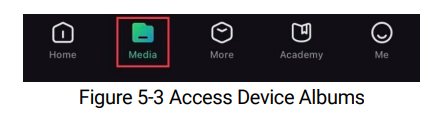
Connection. - Tap Media to access device albums.
3. Tap Local or Device to view the photos and videos.
- Local: You can view the files captured on app.
- Device: You can view the files of the current device.
The photos or videos may not show in Device. Please pull down to refresh the page.
Note
The photos or videos may not show in Device. Please pull down to refresh the page.
- Tap to select a file, and tap Download to export the file to your local
phone albums

Note
- Go to Me -> About -> User Manual on the app to see more detailed operations.
- You can also access device albums by tapping bottom left icon in the live view interface.
- The exporting operation may vary due to app updates. Please take the actual app version for reference
5.6.2 Export Files via PC
This function is used to export recorded videos and captured pictures.
Before You Start
Make sure the device is turned on when connecting the cable.
Steps
- Press to show the menu.
- Go to Advanced Settings, and press or to select .
- Press to enter the configuration interface.
- Press or to select USB Flash Drive.
- Connect the device and PC with cable.
Note
Make sure the device is turned on when connecting the cable.
- Open computer disk and select the disk of device. Go to the DCIM folder and find the folder named after the capture year and month. For example, if you capture a picture or record a video on June 2024, go to
DCIM -> 202406 to find the picture or video. - Select and copy the files to PC.
- Disconnect the device from your PC.
Note
- The device displays images when you connect it to PC. But functions such as recording, capturing and hotspot are disabled.
- When you connect the device to PC for the first time, it installs the drive program automatically.
5.7 Direction Display
5.7.1 Switch on Compass
Equipped with a compass, the device can display its direction on the live image, captured images, and recorded videos.
Steps
- Press to show the menu.
- Go to Advanced Settings, and press or to select
 .
. - Select Compass, and press to enable the function.
- Follow the pop-up instructions to calibrate the compass. See Calibrate
Compass for more information.
Result
After successful calibration, you can see the azimuth (AZM) angle and elevation (EL) angle displayed on the screen. It is recommended to read the information when you lay the device horizontally. To increase the direction accuracy, you can set the magnetic declination correction. See Magnetic Declination Correction for instructions.
5.7.2 Calibrate Compass
Compass calibration is a must for correction direction display. You need to calibrate the compass when you enable the function for the first time, or when the compass is magnetically interfered

Steps
- Call the calibration guide by the following ways.
- When you enable compass for the first time, the compass calibration guide pops up.
- When the compass information appears in red, select in the menu and press to restart calibrating compass.
2. Follow the screen instructions to move and rotate the device

Note
- During calibration, keep moving and rotating the device to make sure that the device faces every possible directions.
- Level indicates the validity of calibration. Higher level means more accurate compass reading. Calibration succeeds when Level turns to 3.
3. Stop moving the device when calibration success message pops up.
Result
The direction information is displayed on the live view interface.

5.7.3 Magnetic Declination Correction
Magnetic declination is the angle variation between magnetic north and true north. Adding the magnetic declination to the compass increases the accuracy of direction reading.
Steps
- After the compass is calibrated, go to the compass setting interface,
and press or to select Magnetic Declination. - Press to enter the setting interface, and press or to select

3. Hold to save and exit
Note
It is recommended to check the local magnetic declination information on the authorized website before manually correcting the magnetic declination. The eastern magnetic declination is indicated with a positive mark (+), and the western declination is indicated with a negative mark (-).
5.8 Geographic Location Display
Note
- The satellite module is unable to receive signals when the device is indoor. Place the device in an empty outdoor space to receive signals.
- In the outdoors, wait for a moment for the device to display its location.
- Equipped with satellite positioning modules, the device is able to isplay the longitude and latitude, as well as the sea level altitude of thedevice on the live image, captured images, and recorded videos.
Steps
- Press to show the menu.
- Go to Advanced Settings, and press or to select
 .
. - Press to enable GPS. You can see the location displayed at the
lower right corner of the screen.

If the location information displays the information “Weak Signal”, it indicates the signal is weak or no signal. Please move to the open outdoor space to try again.

6 System Settings
6.1 Adjust Date
Steps
- Press to show the menu.
- Go to Advanced Settings, and press or to select
 .
. - Press to enter the configuration interface.
- Press to select the year, month, or day, and press or to change the number.
- Hold to save settings and exit.
6.2 Synchronize Time
Step
- Press to show the menu.
- Go to Advanced Settings, and press or to select
 .
. - Press to enter the configuration interface.
- Press or to switch the clock system. 24-hour and 12-hour
clock are selectable. If you select 12-hour clock, press, and then press or to select AM or PM. - Press to select the hour or minute, and press or to change the number.
- Hold to save settings and exit.
6.3 Set Language
You can select the device language in this function.
Steps
- Press to show the menu.
- Go to Advanced Settings, and press or to select
 .
. - Press to enter the language configuration interface.
- Press or to select the language as required, and press to confirm.
- Hold to save settings and exit.
6.4 Cast Device Screen to PC
The device supports casting screen to PC by UVC protocol-based client software or player. You can view the device image on the display for details.
Steps
- Press to show the menu.
- Go to Advanced Settings, and press or to select .
- Press to enter the configuration interface.
- Press or to select Digital.
- Hold to save settings and exit.
- Open the UVC protocol-based client software, and use a type-C cable to
connect your device with PC.
6.5 Set Unit
You can switch the unit for distance measurement
Steps
- Press to show the menu.
- Go to Advanced Settings, and press or to select
 .
. - Press to enter the unit setting interface. Press or to
select the unit as required. - Hold to save settings and exit.
6.6 View Device Information
- Press to show the menu.
- Go to Advanced Settings, and press or to select
 .
. - Press to confirm. You can view the device information such as version and serial No.
- Hold to save settings and exit.
6.7 Format
Steps
- Press to show the menu.
- Go to Advanced Settings, and press or to select
 .
. - Press to format the device storage according to the prompt
Note
When selecting , the device automatically shows the remaining storage.
6.8 Restore Device
Steps
- Press to show the menu.
- Go to Advanced Settings, and press or to select
 .
. - Press to restore the device to defaults according to the prompt.
7 Frequently Asked Questions
7.1 Why does the charge indicator flash improperly?
Check the following items.
- Check whether the device is charged with standard power adapter and the charging temperature is above 0 °C (32 °F).
- Charge the device in power off status.
7.2 Why is the power indicator off?
Check whether the device is off-battery. Check the indicator after charging the device for 5 minutes.
7.3 The image is not clear, how to adjust it?
Adjust the diopter adjustment ring or focus ring until the image is clear. Refer to Adjust Device.
7.4 Capturing or recording fails. What’s the problem?
Check the following items.
- Whether the device is connected to your PC. Capturing or recording is disabled in this status.
- Whether the storage space is full.
- Whether the device is low-battery.
7.5 Why the PC cannot identify the device?
Check the following items.
- Whether the device is connected to your PC with supplied USB cable.
- If you use other USB cables, make sure the cable length is no longer than 1 m.
- Check whether the USB connection mode is switched to USB Flash Drive
Legal Information
© Hangzhou Microimage Software Co., Ltd. All rights reserved.
About this Manual
The Manual includes instructions for using and managing the Product. Pictures, charts, images and all other information hereinafter are for description and explanation only. The information contained in the anual is subject to change, without notice, due to firmware updates or other reasons. Please find the latest version of this Manual at the IKMICRO website (www.hikmicrotech.com/). Please use this Manual with the guidance and assistance of professionals trained in supporting the Product.
Trademarks Acknowledgement
 and other HIKMICRO’s trademarks and logos are the properties of HIKMICRO in various jurisdictions. Other trademarks and logos mentioned are the properties of their respective owners.
LEGAL DISCLAIMER
TO THE MAXIMUM EXTENT PERMITTED BY APPLICABLE LAW, THIS MANUAL AND THE PRODUCT DESCRIBED, WITH ITS HARDWARE, SOFTWARE AND FIRMWARE, ARE PROVIDED “AS IS” AND “WITH ALL
FAULTS AND ERRORS”. HIKMICRO MAKES NO WARRANTIES, EXPRESS OR IMPLIED, INCLUDING WITHOUT LIMITATION, MERCHANTABILITY, SATISFACTORY QUALITY, OR FITNESS FOR A PARTICULAR PURPOSE. THE
USE OF THE PRODUCT BY YOU IS AT YOUR OWN RISK. IN NO EVENT WILL HIKMICRO BE LIABLE TO YOU FOR ANY SPECIAL, CONSEQUENTIAL, INCIDENTAL, OR INDIRECT DAMAGES, INCLUDING, AMONG OTHERS,
DAMAGES FOR LOSS OF BUSINESS PROFITS, BUSINESS INTERRUPTION, OR LOSS OF DATA, CORRUPTION OF SYSTEMS, OR LOSS OF DOCUMENTATION, WHETHER BASED ON BREACH OF CONTRACT, TORT
(INCLUDING NEGLIGENCE), PRODUCT LIABILITY, OR OTHERWISE, IN CONNECTION WITH THE USE OF THE PRODUCT, EVEN IF HIKMICRO HAS BEEN ADVISED OF THE POSSIBILITY OF SUCH DAMAGES OR LOSS.
YOU ACKNOWLEDGE THAT THE NATURE OF THE INTERNET PROVIDES FOR INHERENT SECURITY RISKS, AND HIKMICRO SHALL NOT TAKE ANY RESPONSIBILITIES FOR ABNORMAL OPERATION, PRIVACY LEAKAGE OR OTHER DAMAGES RESULTING FROM CYBER-ATTACK, HACKER ATTACK, VIRUS INFECTION, OR OTHER INTERNET SECURITY RISKS; HOWEVER, HIKMICRO WILL PROVIDE TIMELY TECHNICAL SUPPORT IF REQUIRED.
YOU AGREE TO USE THIS PRODUCT IN COMPLIANCE WITH ALL APPLICABLE LAWS, AND YOU ARE SOLELY RESPONSIBLE FOR ENSURING THAT YOUR USE CONFORMS TO THE APPLICABLE LAW. ESPECIALLY, YOU ARE RESPONSIBLE, FOR USING THIS PRODUCT IN A MANNER THAT DOES NOT INFRINGE ON THE RIGHTS OF THIRD PARTIES, INCLUDING WITHOUT LIMITATION, RIGHTS OF PUBLICITY, INTELLECTUAL PROPERTY RIGHTS, OR DATA PROTECTION AND OTHER PRIVACY RIGHTS. YOU SHALL NOT USE THIS PRODUCT FOR ILLEGAL HUNTING ANIMALS, INVASION OF PRIVACY OR ANY OTHER PURPOSE WHICH IS ILLEGAL OR DETRIMENTAL TO THE PUBLIC INTEREST. YOU SHALL NOT USE THIS PRODUCT FOR ANY PROHIBITED END-USES, INCLUDING THE DEVELOPMENT OR PRODUCTION OF WEAPONS OF MASS ESTRUCTION, THE EVELOPMENT OR PRODUCTION OF CHEMICAL OR BIOLOGICAL WEAPONS, ANY ACTIVITIES IN THE CONTEXT RELATED TO ANY NUCLEAR EXPLOSIVE OR UNSAFE NUCLEAR FUEL-CYCLE, OR IN SUPPORT OF HUMAN RIGHTS ABUSES. IN THE EVENT OF ANY CONFLICTS BETWEEN THIS MANUAL AND THE APPLICABLE LAW, THE LATTER PREVAILS.
Regulatory Information
These clauses apply only to the products bearing the corresponding mark
or information
EU Conformity Statement

This product and – if applicable – the supplied accessories too are marked with “CE” and comply therefore with the applicable harmonized European standards listed under the Directive 2014/30/EU (EMCD), Directive 2014/35/EU (LVD), Directive 2011/65/EU (RoHS), Directive 2014/53/EU.
Hereby, Hangzhou Microimage Software Co., Ltd. declares that this device (refer to the label) is in compliance with Directive 2014/53/EU. The full text of the EU declaration of conformity is available at the following internet address: https://www.hikmicrotech.com/en/support/downloadcenter/declaration-of-conformity/ Frequency Bands and Power (for CE) The frequency bands and transmitting power (radiated and/or conducted) nominal limits applicable to the following radio equipment are as follows: Wi-Fi 2.4 GHz (2.4 GHz to 2.4835 GHz), 20 dBm 5 GHz (5.15 GHz to 5.25 GHz): 23 dBm
5.15 to 5.25 GHz Indoor use only. For the device without a supplied power adapter, use the power adapter provided by a qualified manufacturer. Refer to the product specification for detailed power requirements.

For the device without a supplied battery, use the battery provided by a qualified manufacturer. Refer to the product specification for detailed battery requirements. Directive 2012/19/EU (WEEE Directive): Products marked with this symbol cannot be disposed of as unsorted municipal waste in the European Union. For proper recycling, return this product to your local supplier upon the purchase of equivalent new equipment, or dispose of it at designated collection points. For more information see:
www.recyclethis.info

Regulation (EU) 2023/1542 (Battery Regulation): This product contains a battery and it is in conformity with the Regulation (EU) 2023/1542. The battery cannot be disposed of as unsorted municipal waste in the European Union. See the product documentation for specific battery
information. The battery is marked with this symbol, which may include lettering to indicate cadmium (Cd), or lead (Pb). For proper recycling, return the battery to your supplier or to a designated collection point. For more information see: www.recyclethis.info
Symbol Conventions
The symbols that may be found in this document are defined as follows
| Symbol | Description |
| Note | Provides additional information to emphasize or supplement important points of the main text |
| Caution | Indicates a potentially hazardous situation, which if not avoided, could result in equipment damage, data loss, performance degradation, or unexpected results. |
| Danger | Indicates a hazard with a high level of risk, which if not avoided, will result in death or serious injury. |
Safety Instruction
These instructions are intended to ensure that user can use the product correctly to avoid danger or property loss. Please read all the safety information carefully before using.
Transportation
- Keep the device in original or similar packaging while transporting it.
- Keep all wrappers after unpacking them for future use. In case of any failure occurred, you need to return the device to the factory with the original wrapper. Transportation without the original wrapper may result in damage on the device and the company shall not take any responsibilities.
- Do not drop the product or subject it to physical shock. Keep the device away from magnetic interference
Power Supply
- If a power adapter is provided in the device package, use the provided adapter only. If no power adapter is provided, ensure the power adapter or other power supply complies with Limited Power Source. Refer to the product label for the power supply output parameters.
- Make sure the plug is properly connected to the power socket.
- DO NOT connect multiple devices to one power adapter, to avoid overheating or fire hazards caused by overload.
Battery
- The device supports removable rechargeable li-ion battery, and the battery size should be 86 mm × 48 mm. The battery rated voltage and capacity is 7.2 V/4800 mAh.
- For long-term storage of the battery, make sure it is fully charged every half year to ensure the battery quality. Otherwise, damage may occur.
- CAUTION: Risk of explosion if the battery is replaced by an incorrect ype.
- The purchased batteries by users need to comply with the relevant international standards about battery safety (e.g. EN/IEC standards).
- The built-in battery cannot be dismantled. Please contact the manufacture for repair if necessary.
- Make sure the battery temperature is between 0 °C to 50 °C (32 °F to 122 °F) when charging.
- Batteries of improper size cannot be installed, and may cause abnormal shutdown
- CAUTION: Risk of explosion if the battery is replaced by an incorrect ype. Replace with the same or equivalent type only.
- Improper replacement of the battery with an incorrect type may defeat a safeguard (for example, in the case of some lithium battery types).
- Do not dispose of the battery into fire or a hot oven, or mechanically crush or cut the battery, which may result in an explosion.
- Do not leave the battery in an extremely high temperature surrounding environment, which may result in an explosion or the leakage of flammable liquid or gas.
- Do not subject the battery to extremely low air pressure, which mayresult in an explosion or the leakage of flammable liquid or gas.
- Dispose of used batteries according to the instructions.
- Confirm there is no flammable material within 2 m of the charger during charging.
- DO NOT place the battery in the reach of children.
- DO NOT swallow the battery to avoid chemical burns.
- This product contains a coin/button cell battery. If the coin/button cell battery is swallowed, it can cause severe internal burns in just 2 hours and can lead to death.
- If the battery compartment does not close securely, stop using the product and keep it away from children.
- If you think batteries might have been swallowed or placed inside any part of the body, seek immediate medical attention.
- DO NOT place the device with battery or the battery alone near heating or fire source. Avoid direct sunlight.
Maintenance
- If the product does not work properly, please contact your dealer or the nearest service center. We shall not assume any responsibility for problems caused by unauthorized repair or maintenance.
- Make sure that the power has been disconnected before device teardown and repair by professionals.
- Wipe the device gently with a clean cloth and a small quantity of ethanol, if necessary.
- If the equipment is used in a manner not specified by the manufacturer, the protection provided by the device may be impaired.
- Clean the lens with soft and dry cloth or wiping paper to avoid scratching it
Using Environment
- Make sure the running environment meets the requirement of the device. The operating temperature shall be -30 °C to 55 °C (-22 °F to 131 °F), and the operating humidity shall be from 5% to 95%.
- DO NOT expose the device to high electromagnetic radiation or dusty environments.
- DO NOT aim the screen at the sun or any other bright light.
- Place the device in a dry and well-ventilated environment.
- Avoid equipment installation on vibratory surface or places subject to shock (neglect may cause equipment damage).
- This equipment is not suitable for use in locations where children are
- likely to be present.
Emergency
If smoke, odor, or noise arises from the device, immediately turn off the power, unplug the power cable, and contact the service center.
Laser

When any laser equipment is in use, make sure that the device lens is not exposed to the laser beam, or it may burn out. The laser radiation emitted from the device can cause eye injuries, burning of skin or inflammable substances. Before enabling the laser ranging function, make sure no human or inflammable substances are in front of the laser lens. Do not place the device where minors can fetch it. The wavelength is 905 nm, the pulse duration is 52 ns, and the max. power output is less than 2.2 mW. According to IEC 60825- 1:2014, EN 60825-1:2014+A11:2021, and EN 50689:2021, this laser product is classified as Class 1 laser product and consumer laser product.
Limited Warranty
Scan the QR code for the product warranty policy.

Manufacture Address
Room 313, Unit B, Building 2, 399 Danfeng Road, Xixing Subdistrict,
Binjiang District, Hangzhou, Zhejiang 310052, China Hangzhou Microimage Software Co., Ltd.
COMPLIANCE NOTICE: The thermal series products might be subject to
export controls in various countries or regions, including without imitation, the United States, European Union, United Kingdom and/or other ember countries of the Wassenaar Arrangement. Please consult your professional legal or compliance expert or local government authorities for any necessary export license requirements if you intend to transfer, export, re-export the thermal series products between different countries