
Products:
Overview
Box Content

Description
The handheld thermal binocular (binocular for short) is a pair of binoculars with both thermal observation function and target searching function. The device can quickly discover and accurately locate targets on the ground, at sea and in the river even under extreme environment, such as smoke, fog, rain and snow. It can be applied to various scenarios, such as patrol, law enforcement, search and rescue, drug enforcement, anti-smuggling and suspect capture.
Functions
Thermal View
Device detects the thermal radiation and shows on the screen.
Fusion
Device can display the fusion of thermal view and optical view.
Palette
Device supports multiple palettes, and you can set the palette mode according to the scene.
Distance Detection
Device can detect the target distance with built-in laser-distance detection module.
Wi-Fi Hot Spot
Device can capture snapshots, record videos, and set parameters via APP after being connected to your phone.
GPS
Device can locate the target position and can be located with GPS system.
DMC (Digital Magnetic Compass)
The DMC module can detect the azimuth angle and elevation angle of the target and show the direction information on the screen.
Appearance
Components


Cables Description

Key Description


Device Operation
Device Charging
Purpose:
For the first use, when the device is running low, charge the batteries with your charger.
Steps:
1. Take out the USB cable from the package.
2. Connect the USB cable with battery charger and appropriate adaptor.
3. Insert the batteries in the charger with corresponding positive/negative terminals.
Note:
When the charger is powered on, the LCD display automatically lights up. The charger will detect the battery and charge it.

4. Complete battery charging and disassemble the battery.
Battery Installation
Purpose:
Insert the batteries into the battery compartment.
Steps:
1. Rotate the battery cover anticlockwise to disassemble it.

Power On/Off
Power On
Step:
When the binocular is fully charged, press the key to power on the binocular.
Notes:
- See the battery icon for the electricity quantity. means battery is fully charged, and means that the battery runs low.
- When the Low power note shows, charge the battery
Power Off
Step:
When the binocular is running, hold the key for four seconds to power off the binocular.
Cable Connection
- Do NOT drag the cables when you are connecting the cables, or the cables are connected.
- To plug in/out the cable, hold the cable end and then plug in/out it. Do NOT twist the cables, or the pins inside may be damaged.
Purpose:
Connect the binocular with the aviation cable, and you can connect the device to your PC via USB interface or the display via the BNC interface.
Step:
Connect the aviation cable with the aviation Interface. Make sure the anchor points match with each other and insert the cable.

To disconnect the cable, lift the cable.
Teleconverter Mounting
Step:
Align the two red spots on the teleconverter and the objective, then rotate the teleconverter clockwise to finish mounting.

Rotate the teleconverter anticlockwise to dismount it
Focus
Notes:
Do NOT touch the lens directly with your finger, or place any sharp objects near it.
Steps:
1. Slightly rotate the focus wheel to focus the eyepiece.

2. In the live view interface, press or hold the key and key to focus the objective. Press the key to focus step by step. Hold the key to focus quickly
Binocular Setup
Menu Description
Step:
Hold the button to show the menu. In the menu, the direction keys, OK key, and the Exit key are shown below.

See the figure below for the menu interface.
Note:
The figure below is only for reference, the font size is readjusted for better viewing.

Local Output
Before you start:
Connect the binocular to the display unit via CVBS interface of the aviation plug. Refer to Section 2.4.
Purpose:
View the binocular image on the display unit for details.
Steps:

File Export
Before you start:
Connect the binocular to your PC via USB interface of the aviation plug. Refer to Section 2.4.
Purpose:
Export the videos and snapshots with your PC.
Steps:
1. In your PC, go to the Removable Disk.
2. Double-click to open the disk. View or copy the videos or snapshots.
3. Disconnect the binocular with the PC
Display Settings
Display Brightness & Contrast
Purpose:
Adjust the brightness and contrast of the screen display.
Note:
This adjustment also affects the brightness and contrast of menu, icons, etc.
Screen Brightness
Steps:

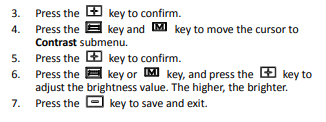
Screen Contrast
Steps:

Digital Zoom
Enable the digital zoom function to enlarge the image display. Press the key to switch the digital zoom of binocular. The value of digital zoom can be set to 1X, 2X, 3X, 4X.
OSD Setting

Fusion Target
Before you start:
Mount the desired teleconverter lens first.
Steps:


Palettes Settings

Purpose:
The binocular has dual-lens: thermal and visible light lens. You can set the thermal/optical view to show thermal channel, visible light channel, or both of them. For thermal view, you can set the palettes.
Step:
1. In the live view interface, press the key to display the palettes menu.
2. Press the key to switch the view mode.


Result:
After setting the palette, the current palette, next palette, and the previous palette are shown in the upper right corner.

Detect Distance
In the live view interface, aim the cursor at the target and hold the key, the distance towards the target can be measured and showed on the screen.
Warning:
The laser radiation emitted from the device can cause eye injuries, burning of skin or inflammable substances. Before enabling the Light Supplement function, make sure no human or inflammable substances are in front of the laser lens.
Wi-Fi
Purpose:
Connect your phone to the binocular via Wi-Fi, you can configure the parameters and realize functions of the device.
Steps:


4. Setting the Wi-Fi name and password of your phone or the router as follow:
– Wi-Fi Name: WLAN-IPTP.
– Wi-Fi Password: abcd1234.
5. Search the “iVMS-4500” on App Store (iOS System) or Google Play TM (Android System) to download and install the app.
6. Open the APP and connect your phone with the device. You can view the interface of binocular on your phone.
Hot Spot
Purpose:
Connect your phone to the hot spot of the binocular, you can configure the parameters and realize functions of the device.
Steps:

6. Turn on the WLAN of your phone and connect to the hot spot.
– Hot Spot Name: HIK-IPTS Serial No.
– Hot Spot Password: Serial No.
7. Search the “iVMS-4500” on App Store (iOS System) or Google Play TM (Android System) to download and install the app.
8. Open the APP and connect your phone with the device. You can view the interface of binocular on your phone.
GPS

DMC (Digital Magnetic Compass)
Purpose:
The DMC function can locate the target position and self-locate the binocular together with the GPS function.
Steps:
- Hold the key to show the menu of binocular
- Press the key and key to move the cursor to DMC submenu.
- Press the key to switch on DMC.
Calibration

Magnetic Declination

Azimuth Correction

Reset Default Settings
Purpose:
Restore the device to default settings.
Steps:


Capture and Video
Capture Settings
Capture Snapshots
Step:
In the live view mode, press the key to capture a snapshot.
When capturing succeeded, it shows Capture succeeded. When capturing failed, it shows Capture failed.
View Snapshots

Delete Snapshots
Once a snapshot is deleted, it can NOT be recovered. Do this operation cautiously.
Steps:


Video Settings
Video Recording
Steps:
1. In the live view mode, hold the key to record videos. When the record time shows on the top, it starts recording.
2. When the desired video is recorded, hold the key to stop recording.
Video Playback

Delete Videos
Once a video is deleted, it can NOT be recovered. Do this operation cautiously.
Steps:

iVMS-4500 Connection
Before you start:
Install the iVMS-4500 on your mobile phone first, and then connect your phone to the hot spot of the scoop. Refer to chapter 3.8 for details of hot spot connection.
Add the Device
Steps:
1. Open the iVMS-4500 and click Device.
2. Click on the top right of the interface, select Online Device.
3. Click the desired online device. If necessary, please active the device first.
Active the Device:
a) Click Activate.
b) Edit the password, and click Confirm.
4. You can view the device information and network information on the Details page.
5. Click Add to add the device to the iVMS-4500.
6. Enter the password and click to save settings.
7. Note: the password is the password setting in the device active interface.
8. Click to exit.
View the Interface of Device
Steps:
1. Click Live View on the main menu.
2. Click on the top left of the interface, then click to select the desired channel.
3. You can view the interface of the scoop on the software.
Appendix
Dimensions

Note: the dimension varies according to different camera models